
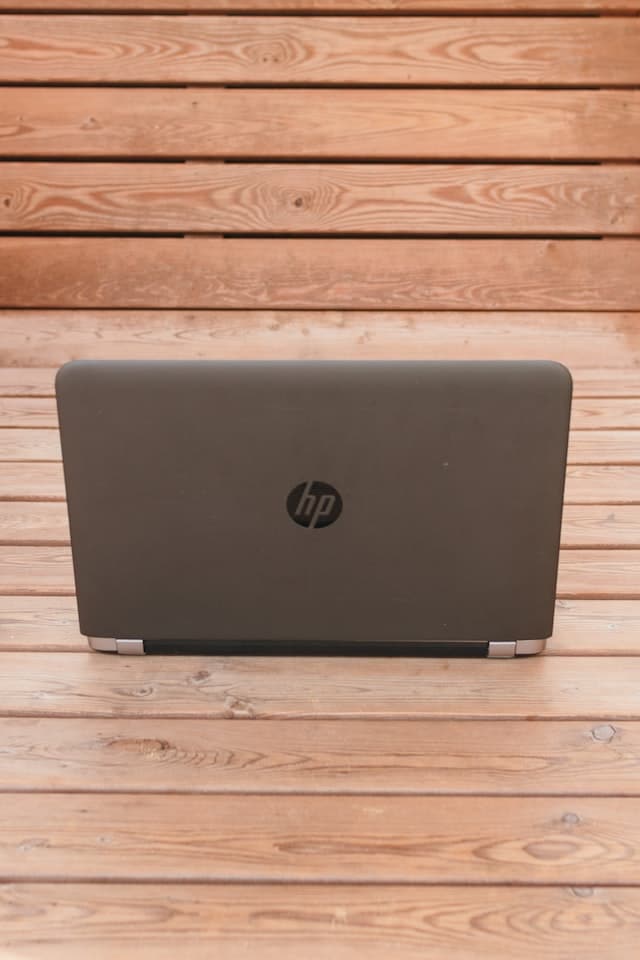
According to Statista, HP’s shipments amount to 13.5 million units in the world. For years, the brand has competed with some of the best manufacturers of laptops.
Like every other laptop product – HP laptops tend to be slow sometimes. When that happens, the easiest way to fix it is to restart your device. That helps flush your computer’s memory as well as free up your CPU.
It’s a good place to start with a slow system.
Disabling unnecessary startup items on your HP laptop is another way you can fix your device.
Not only that but deleting unnecessary files can also help in speeding up the slowness of your laptop. It could be installed games or programs slowing down the effective running of your PC. Uninstalling these files is the perfect way to fix it.
With that said, there are times it takes more than that to fix the slowness of your HP laptop. In this article, we will walk you through why your HP is slow and provide practical ways to fix it.
Are you ready?
How to Make HP Laptop Faster and Better
Hardware Issues
Hardware is the physical part of a computer you can touch. They are the mouse, keyboards, and the interior part of a laptop such as a motherboard, video card, and hard disk.
Therefore, any trouble with any of your HP laptop’s hardware could be responsible for the slowness of your device.
For instance, Your laptop might be running slow because you don’t have enough memory (RAM). When you exhaust your RAM, the system is forced to use the virtual memory – stored in the hard drive.
With that said, here are common ways to fix hardware issues that might be responsible for your system running slow.
- Fix the power connector: The power port is one of the fragile parts of a computer. When you plug in your power cable in your PC and someone tripped on it, this can cause damage to your power port.
It’s important to note that the power connector is directly connected to the motherboard.
So, this could result in your HP laptop working slowly.
- Hard disk failure is one of the common problems of computer hardware. Did your computer fall off while working? It could be the reason why your computer is running slow.
When your window starts regularly but you see a blue screen when you start the window with errors like “UNMOUNTABLE_BOOT_VOLUME”, “hal.dll is missing or corrupt” or “WINDOWS\SYSTEM32\CONFIG\SYSTEM” (or similar) is missing or corrupt on display.
You might need to consult a technician to fix the hard disk failure.
Apps and Start-Up Programs Running In the Background
Don’t be surprised but there are times your laptop’s memory is amassed with high-level apps that make your laptop run slowly. Chances are you forgot to close these apps or perhaps they are silently running in the background.
You can simply speed up your laptop by checking the task manager for apps that are running in the background.
Similarly, you can open the task manager and enter the command: CTRL + AlT + DEL) to close running programs.
Malware & Viruses
Besides damaging your device and corrupting your files – malware and viruses can damage your laptop. They could cause damages such as filling up your storage, slowing down internet speed, hiding drive content, crashing computers, and loss of personal files.
Spyware, Ransomware, and Keylogger, Adware are a few examples of viruses that can slow down your system.
How do you fix it?
There are tons of premium tools you can use to fix malware & viruses on your laptop. Unfortunately, they are often pricey and not necessarily effective.
However, tools like Panda Free Antivirus, Bitdefender Antivirus, Webroot, MalwareByte, and Avast Free Antivirus are some of the free tools you can explore for the removal of Malware and viruses on your PCs. They are easy to use and anyone can find their way around these tools.
Whichever Anti-malware Antivirus software you choose, make sure they are very effective. Once you’ve installed the software, run it to scan for Malware and viruses.
Let’s look at some of the examples of the best antivirus softwares.
Bitdefender Antivirus
Bitdefender Antivirus is not just free, it’s also one of the most sought-after antivirus software for Windows. It comes with a 100% Malware detection rate.
The tool is a great choice for those that would love to speed up their system. Bitdefender Antivirus Plus is cloud-based – which means that most of your analysis will not be on a PC.
Panda Free Antivirus for Windows
The antivirus tool is lightweight, easy to use, and easy to use. Panda Free Antivirus for Windows detects a decent amount of Spyware, Ransomware, and Adware. It provides real-time protection, blocking off any Malware files anyone tried to download on your system.
Kaspersky Free
Antivirus software is great for the detection and elimination of viruses on PCs. Kaspersky freemium plan has real-time protection.
Add More RAM to Your PC
Adding more RAM to your PC is yet another way you can make your PC faster and better. RAM range is HP devices.
Some HP-branded PCs have lesser RAM which could be an issue for people without tons of files. A perfect solution to this challenge is to add more RAM to your HP device as it would help speed up your device for a long time.
But it comes in various forms. You would need RAM that comes in a box for convertible and detachable laptops. If you have a smart and gaming PC it’s much easier to add RAM to your computer.
Check Your Web Browser
Sometimes, all you need to speed up your laptop is to do something minor such as checking your web browser.
The browser you installed determines the speed or slowness of your PC. If you notice that you spend a lot of time loading a page whenever you are active on the web with your PC, maybe it’s time to do something about it.
There are other web browser alternatives that you can examine how speedy they can get. Also, check if you have a full cache. If you do, simply go to settings to empty it.
The cache gets full anytime you visit numerous sites. Make sure they are emptied whenever they get full. It’s easy to empty the cache whether you are using Internet Explorer as well as Chrome.
Update Your Windows/Apps/Drivers
Additionally, your windows, apps, and drivers might just need updating to speed up the running of your system. Apart from improving the performance of your PC, updating is also good for security.
So, check for updates. To do that, go to the start menu then settings. Click on the settings icon and go to updates & security, you will see window updates.
Close Your Laptop’s, System Tray
In addition, if you notice that your laptop starts slow, you likely have a couple of programs starting up at the same time. You can fix this by closing your system’s tray.
Fix Your Power Option
Tons of Windows preset power plans suit different needs. But we will only cover the default and high performance power plan.
While the default power plan is set to be balanced – which takes energy consumption as well as account performance into consideration. It’s great for those that are trying to tone down their bills on energy.
In contrast, the high performance is a suitable power plan option if your PC is operating slow. It accelerates the speed of your HP device. The only downsides with the power plan is that it consumes much more energy compared to the default plan.
Besides these standard plans, you can create a custom one. Go to the Control Panel then hardware and sound. Click on power options and create a power plan.
Your PC No Longer Supports Newer Technology & Software Updates
If you have an old HP laptop, there are chances that it no longer supports new technology and software updates.
First off, try out other aforementioned solutions mentioned above to be sure it’s an update issue. After you’ve exhausted most of our DIY options, maybe it’s time you invest in a new HP laptop.
Final Thoughts
PCs running low are quite frustrating. It’s hard to have a smooth internet or gaming experience with a slow system. That’s why we’ve handpicked some of the best practices for fixing slow HP laptops.
We recommended starting with minor exercises such as rebooting your system or checking your web browser. You can also close running windows in the tasks manager.
But if all these don’t seem to work – you could add more ram, update windows/apps/drives/ or fix malware & antivirus.
Finally, if you’ve consulted and exhausted all the aforementioned options maybe it’s time to get a new laptop.
Note: These tricks and tips are not limited to HP – they are also applicable to other devices.